

How to Enable Two-Factor Authentication (2FA/MFA) in SmartHub
What is Two-Factor Authentication?
Two-Factor Authentication (2FA), also known as Multi-Factor Authentication (MFA), adds an extra layer of security to your SmartHub account. Instead of logging in with just a password, 2FA requires a second form of verification-such as a code sent via email, text message, or generated by an authentication app.
This helps protect your account from unauthorized access, even if your password is compromised.
How to Enable 2FA in SmartHub
- You can enable and manage 2FA from the Settings > Two-Factor Authentication screen in your SmartHub account.
- Log in to your SmartHub account.
- Navigate to Settings and select Two-Factor Authentication.
- Check the box labeled Enable Two-Factor Authentication.
- Choose your preferred Contact Method:
Email
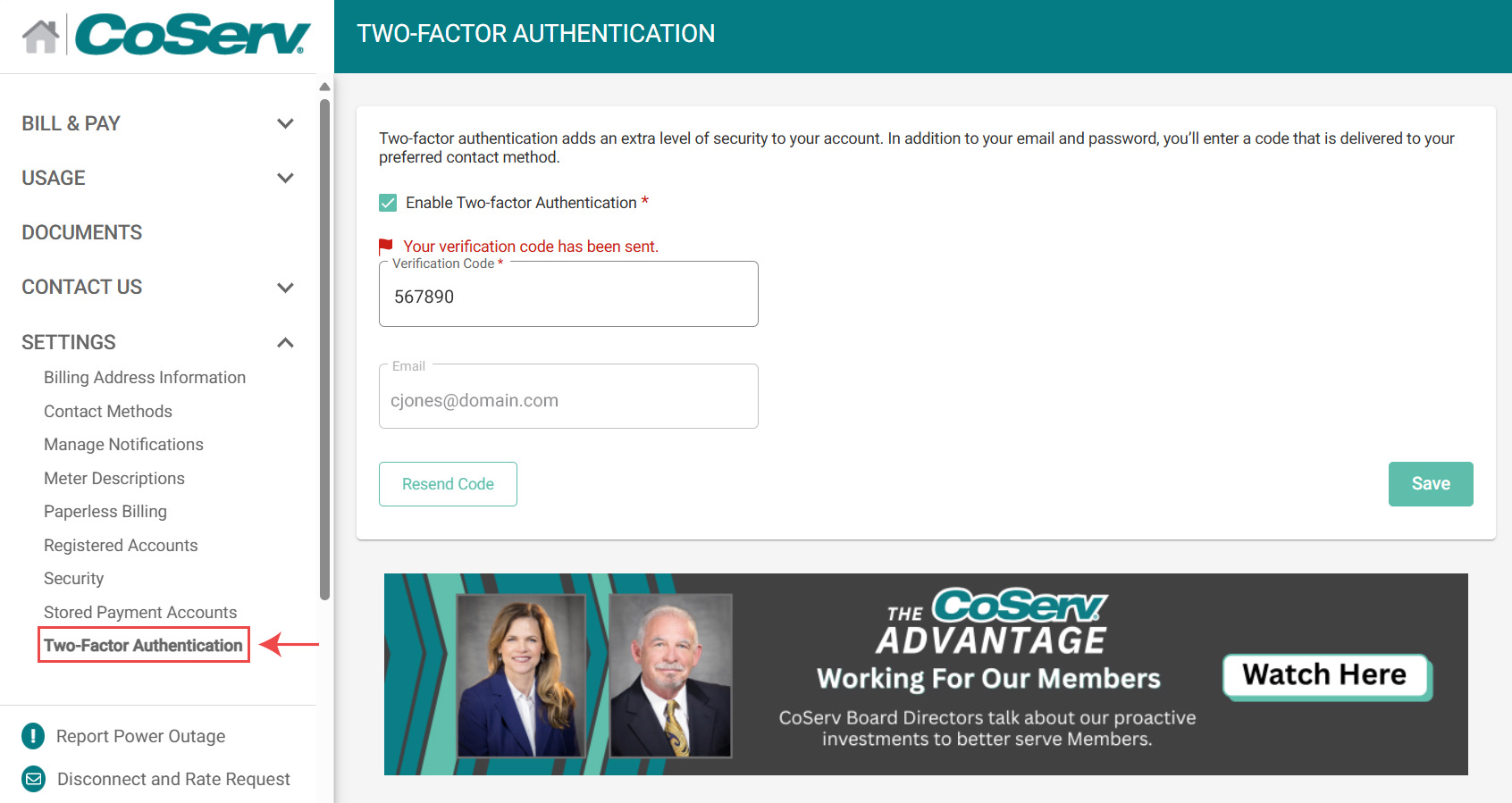
Email:
- Enter your email address.
- Click Continue.
- A verification code will be sent to your email.
- Enter the verification code received.
- Click Continue to confirm and store your contact method.
Text
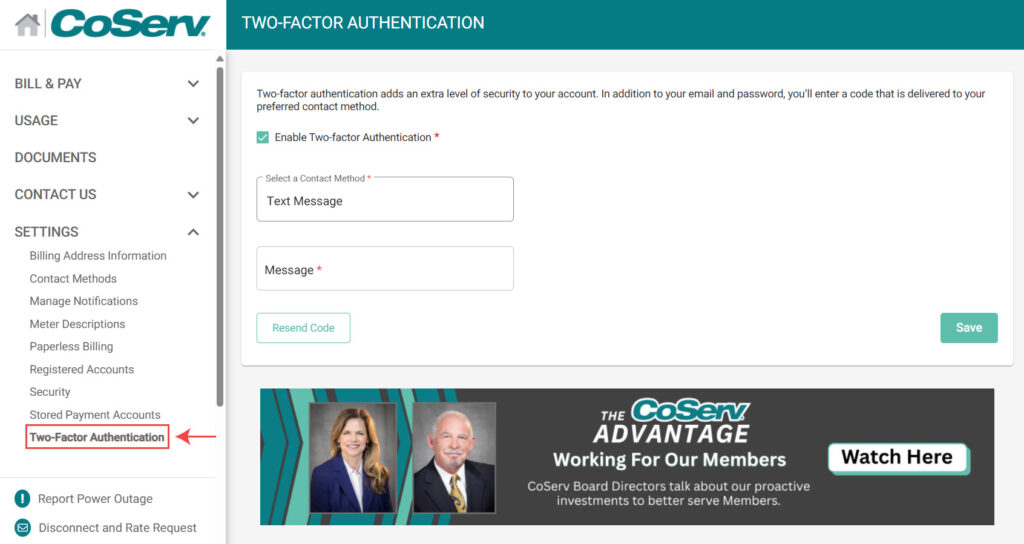
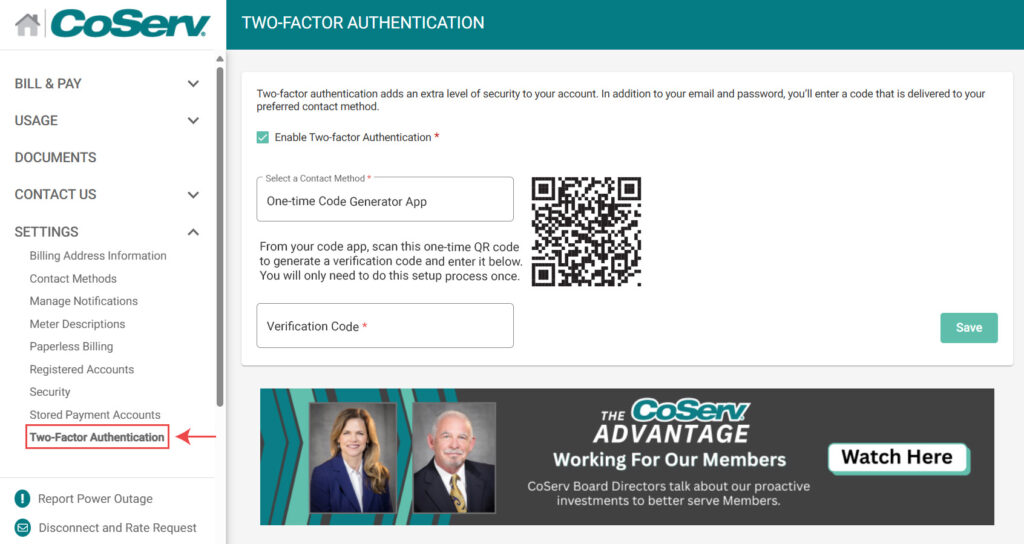
One-Time Code Generator
When Will You Be Prompted for a 2FA Code?
Once 2FA is enabled, you'll be asked to enter a verification code during the following actions:
- Logging in to your SmartHub account
- Recovering or resetting your password
- Adding additional services to your account
This process also applies when accessing SmartHub from the main login page.
Need More Help?
If you run into issues setting up 2FA, contact Customer Care for assistance.